
Writing and the original
Writing adds handwriting, text, lines and shapes over a Read in Reader. It preserves original content and manages annotations separately. It does not edit the creator’s Studio manuscript or the published Read on Horizon.
Writing is local. Save a .dsfr to transfer it to another device. Browser profiles and separate browsers have separate draft storage, even on the same device.
Start Writing
- Open a supported Read in Reader.
- Select the pencil action, Writing.
- Wait for original-content and resource preparation.
- Choose a tool and annotate the page.
A Horizon Read may first need a complete original prepared for Writing. If this fails, check connectivity and retry. Annotation-locked shared files and Studio previews do not allow starting Writing.
Choose a tool
| Tool | Purpose |
|---|---|
| Ballpoint, brush and felt-tip pens | Draw handwriting with tool-specific color and width settings |
| Highlighter | Add translucent emphasis |
| Text | Create a text frame on the page |
| Line, arrow, rectangle and ellipse | Add explanatory lines and shapes |
| Select and move | Select annotations to move or resize them |
| Eraser | Erase annotations in the traced area to reveal the original |
| Correction fluid | Overlay opaque white without deleting the original |
Open a tool’s settings by selecting the chosen tool again or using its available settings action. Tooltips and accessible names identify controls.
The eraser and correction fluid do not remove original content or provide secure redaction.
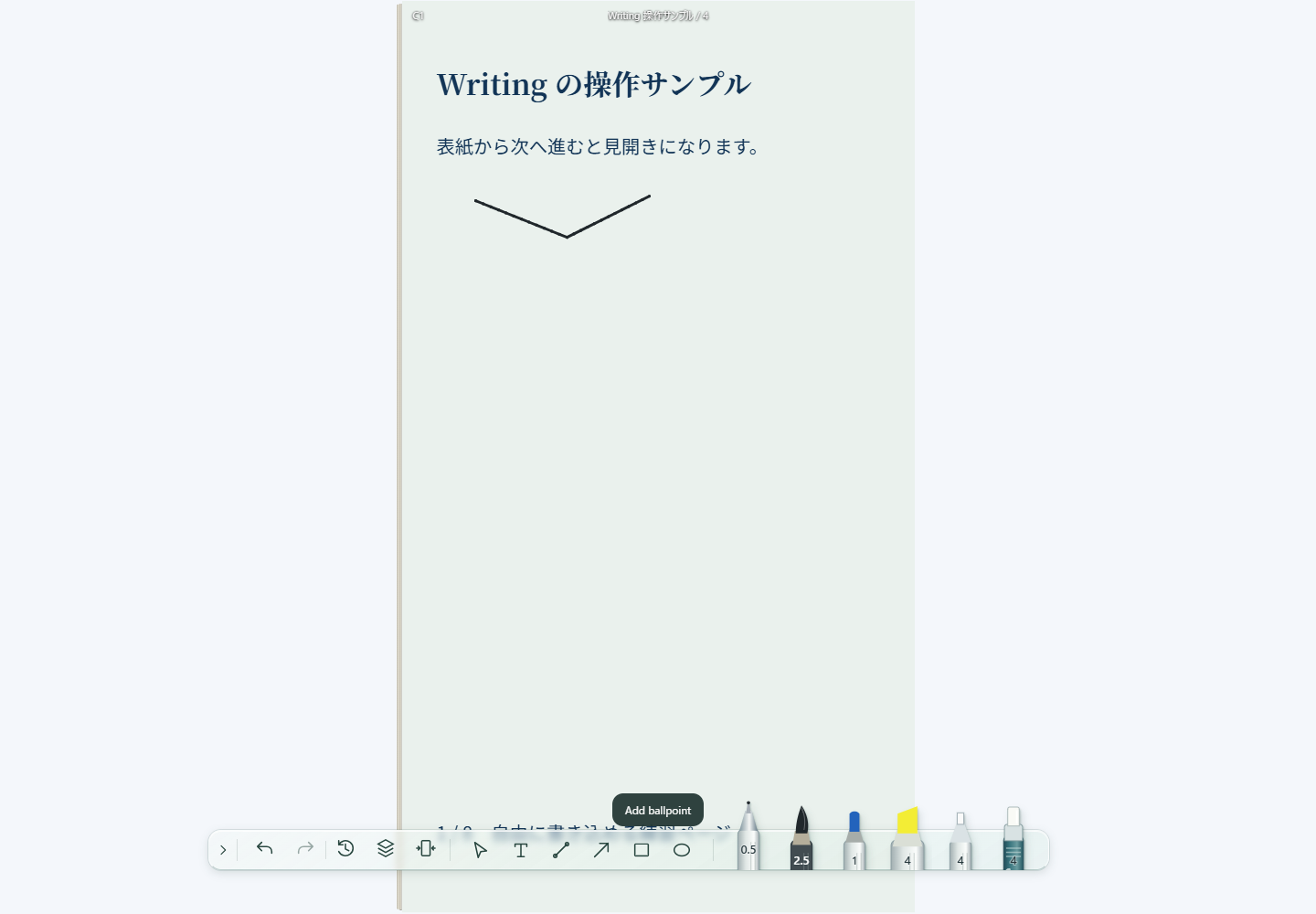
Show and stow the tool bar
Tools appear in a bottom bar. In the current interface, inactivity stows it at the right edge; use the right-edge handle to pull it out again.
A short press on the pencil also toggles tool visibility during Writing. Stowing the tools retains Writing mode and the selected tool.
Enter text
- Choose Text and click or drag on the page to create a frame.
- Enter text and adjust font, size, color and writing direction as needed.
- Confirm the entry. Ctrl/Cmd+Enter also works on PCs.
- Use Cancel or Esc to discard the input.
If text does not fit, retain the input while adjusting its frame or font size. Displaying saved text and preparing fonts for new text input are separate requirements.
Pages, layers and history
Use dedicated navigation buttons while writing: page input is reserved for drawing.
Layers show annotations and stacking order on the current page. Undo and Redo reverse or reapply edits; history can restore a selected state. Shared .dsfr files do not include this editing history.
Save editable or shared copies
| Copy | Use |
|---|---|
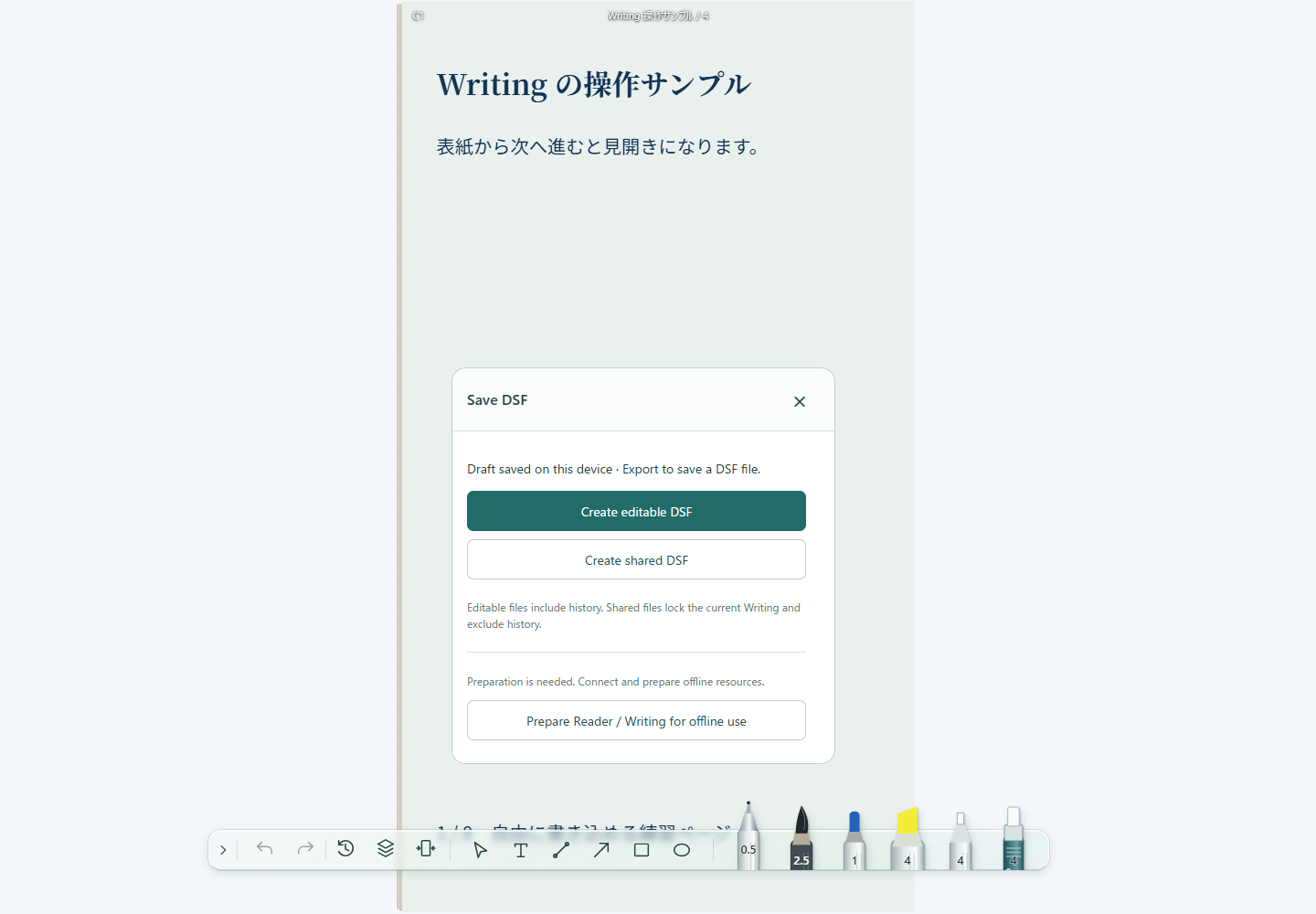
| Editable .dsfr | Continue editing or move notes and history to another device |
| Shared .dsfr | Show current annotations with further Writing locked |
Choose the export type in the save panel and prepare the file. PCs use the download action. Supported phones may offer Save / Share.
On iPhone or iPad, choose Save to Files or another intended destination in the share sheet. This does not automatically overwrite the original. Verify the OS save action when replacing a file with the same name and location.
Check that the file was actually saved before confirming completion in Reader. Closing the share sheet or clicking Download alone does not prove completion.
Resume a local draft
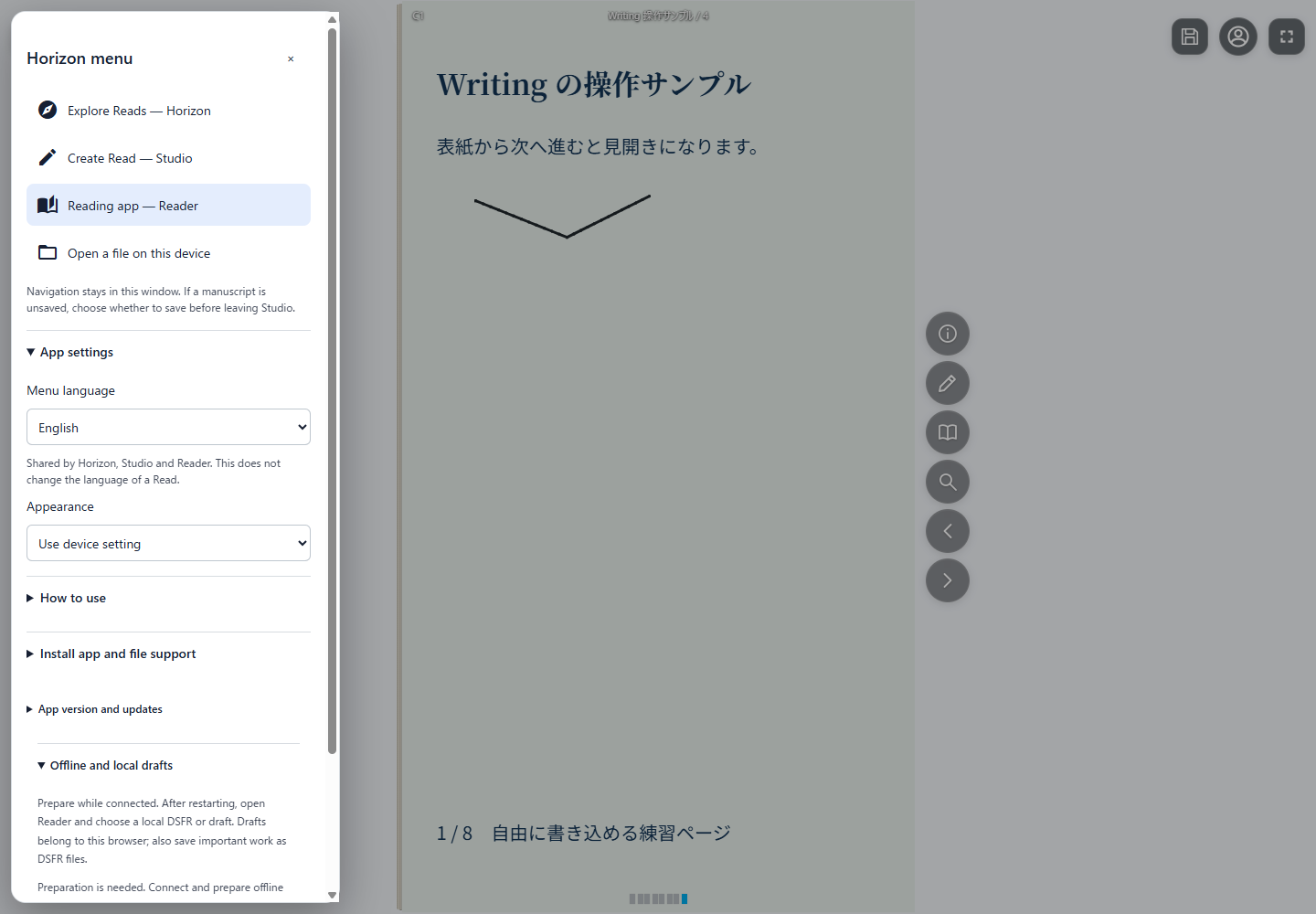
Open Offline and local drafts in Reader’s Horizon menu and select a draft in the same browser. It restores page position, language, annotations and history.
Drafts are not cloud synchronization. Site-data deletion or discarded browser storage can remove them. Also save important work as an editable .dsfr.
Prepare for offline use
- While connected, open Reader’s Horizon menu.
- In Offline and local drafts, run Prepare Reader / Writing for offline use.
- Check for Ready status.
- Also save the required .dsfr on the device.
- Before going offline, check reopening on your intended device and browser.
Application preparation and retaining the Read original are separate. Installing the app or viewing one online page alone does not prove readiness. Missing or updated resources can require preparation again. Discovering new Reads or obtaining originals not yet downloaded requires connectivity.
Return to Reader
Long-press the pencil during Writing to return to Reader. If changes need saving, review the options to save an editable DSFR, return without saving a file, or continue Writing.
Returning without saving a file does not complete file export. Save important changes as an editable .dsfr before finishing.