
Saving, issuing and publishing
| Action | Result |
|---|---|
| Save the manuscript | Retain the state for further Studio editing |
| Generate distribution data in Press | Prepare reading pages and assets |
| Issue to Horizon | Register a Read as a private draft |
| Change status in Reads | Control reader access and public listing |
Saving a manuscript does not publish it. Uploading to Horizon alone does not complete publication for readers.
Check before issuing
- Save the manuscript and confirm completion.
- Check the Read title, public author information and body languages.
- Preview page order, spreads, writing direction and images.
- Review the materials and fonts you will distribute.
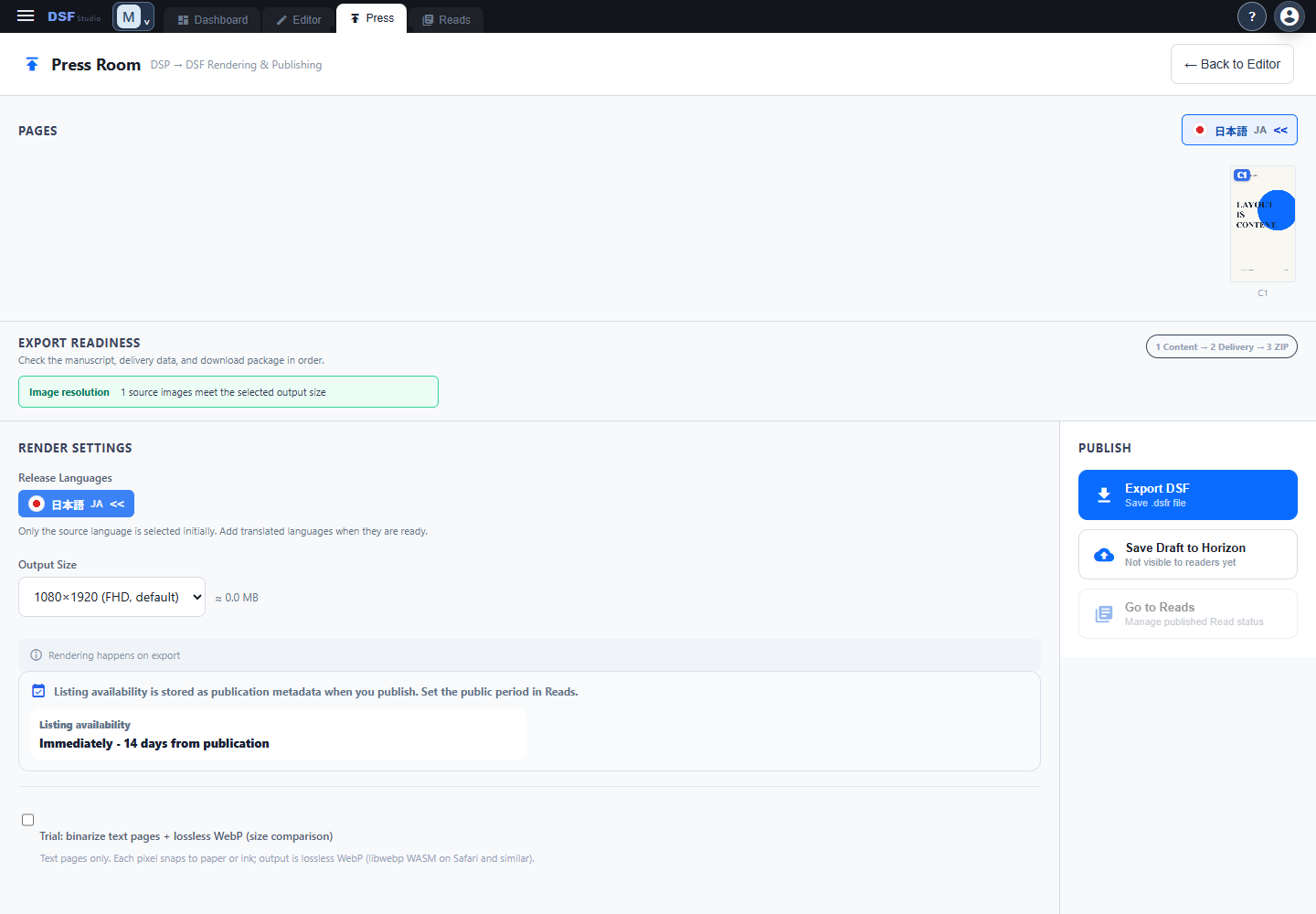
Prepare distribution data in Press
- Open Press in Studio.
- Check the target languages and output settings shown on screen.
- Review readiness for the manuscript, distribution data and ZIP output.
- Address reported image-resolution, font or distribution-condition issues.
If preparation is running or an error appears, follow its reason. Issuing cannot proceed while required conditions, such as completed Flow typesetting, remain unresolved.
Distribute a file
Export a .dsfr for file distribution. Open the saved file in Reader and check pages, languages, images and text before passing it on.
A .dsfp is the creator’s editable project. Keep it distinct from the file intended for readers.
Issue to Horizon
- Use the issue-to-Horizon action in Press.
- Wait for preparation, upload and registration to complete.
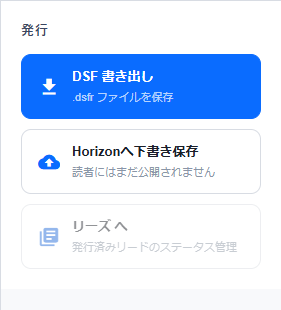
- Find the resulting Read in Reads.
- Check the issued content using the owner preview.
A newly issued Read is a draft. Set its publication status next to make it available to readers.
Select a publication status
| Status | Public Horizon listing | Reader access |
|---|---|---|
| Draft | Not listed | Creator review stage |
| Unlisted | Not listed | Share with people who have the URL |
| Public | Eligible for listing | Published for readers |
| Private | Not listed | Public reader access stopped |
Unlisted is link-based sharing, not an account-specific invitation system. Publication periods and other conditions also affect access.
Check periods and destination
Review the listing eligibility period and public access period shown on screen. Available periods and scheduling depend on the current plan and Read state.
If using a publishing space, check its destination and public profile too. Organizing a manuscript under a space and publishing it for readers are separate settings.
Share and update
Use Copy URL in Reads to obtain the Reader link. Check the reader-facing result after publishing.
Editing and saving a manuscript does not update an already issued Read. Issue the revised manuscript again through Press, then verify its content and publication status in Reads.
To stop publication, change its status in Reads. This does not recall .dsfr files that readers have already received or saved.